
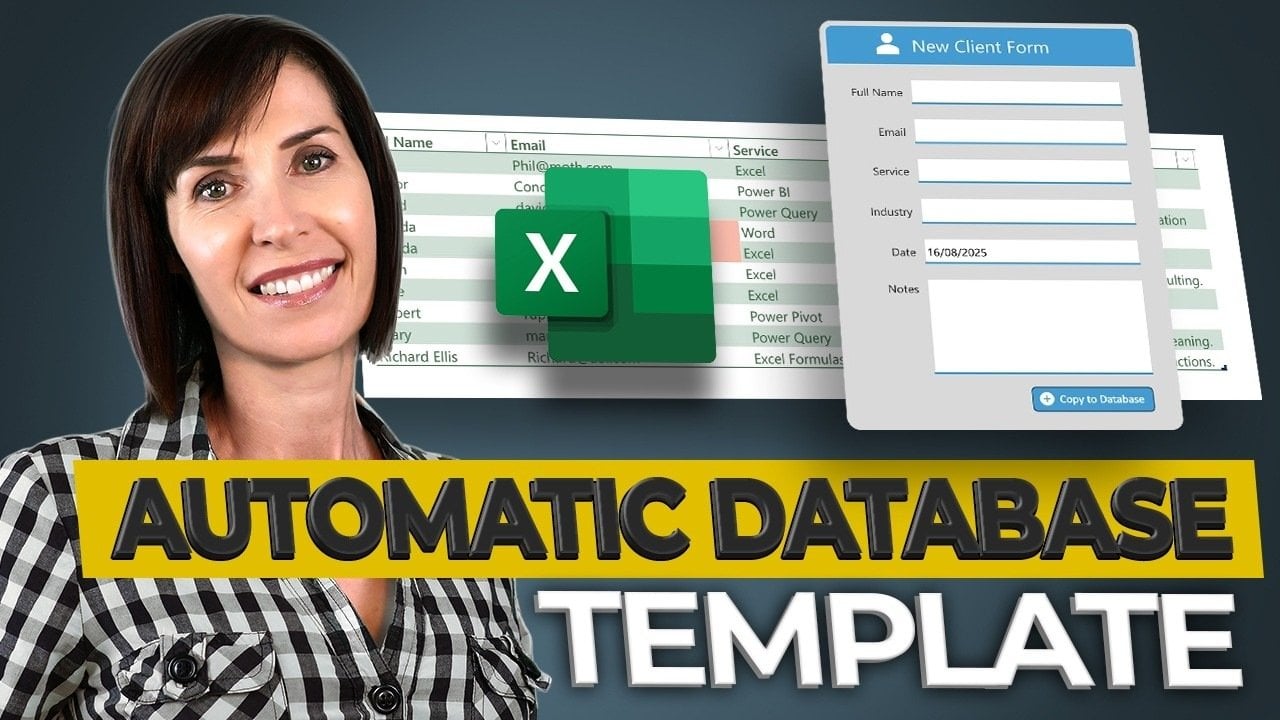
Have you ever found yourself overwhelmed by endless spreadsheets, painstakingly scrolling through rows of data or dealing with multiplying errors? For many users, Excel serves as both a lifeline and a source of frustration. It’s a powerful tool, yet it can feel like more trouble than it’s worth. But what if your spreadsheets could become your best allies? Picture an Excel automation environment that not only organizes your data but also simplifies entry, highlights mistakes, and even performs tasks autonomously. Surprisingly, it’s not only possible but easier than you might think. You don’t need to be a coding guru or spend a fortune on software to harness this capability. In this guide, you will learn how to transform your Excel experience into an efficient and user-friendly system, saving you countless hours of manual labor. From creating intuitive forms to employing Office Scripts for automating mundane tasks, you will discover actionable steps to build a dynamic database. This guide will empower you to maximize Excel’s potential, whether you’re managing client data, tracking inventory, or organizing projects.
Unlocking the Power of Excel Automation
By integrating Excel automation, you can dramatically simplify data entry, organization, and analysis. Tools like forms, tables, and conditional formatting will enhance your Excel experience. Here’s a deeper dive into the steps that will enable you to create a well-oiled automated system:
Designing Effective Forms for Accurate Data Entry
A well-structured form is fundamental to a reliable database. It ensures data is entered consistently, thereby minimizing errors. Follow these guidelines to craft an effective form in Excel:
- Include fields for essential data points such as names, emails, dates, and notes to capture all crucial information.
- Incorporate dropdown lists for standardized entries, ensuring predefined options for industries, departments, or services.
- Utilize formatting techniques like borders and colors to enhance visual appeal.
By standardizing your data entry process, you lay the groundwork for a system that mitigates the risk of errors and discrepancies from the outset.
Creating a Structured Database for Easy Management
Once your form is prepared, it’s time to set up a well-organized database. Excel tables are perfect for this purpose, as they streamline filtering, sorting, and analysis. Here’s how to structure your database effectively:
- Format your database as a table and label each column clearly with headers such as “Name,” “Email,” “Date,” and “Notes.”
- Apply conditional formatting to detect duplicate entries, like identical email addresses, ensuring data integrity.
- Integrate a warning system in your form to alert users of potential duplicates in real time.
This organized structure not only keeps your database tidy but also ensures it can scale easily as your needs grow.
Streamlining Data Entry with Office Scripts
Automation is vital for an efficient database system. With Office Scripts in Excel, you can automate repetitive tasks, saving time and effort. Here’s how to leverage automation effectively:
- Record or create a script that transfers data from the form to the database and clears the form fields after submission.
- Utilize AI tools such as ChatGPT to refine your scripts for enhanced functionality tailored to your specific requirements.
- Thoroughly test the scripts to ensure they work reliably across various scenarios.
By streamlining workflows through automation, you’ll save valuable time while reducing the likelihood of human error.
Ensuring Data Accuracy for Long-Term Reliability
Maintaining data accuracy is crucial for your database’s ongoing reliability. Excel has several features to help avoid errors:
- Set up real-time warnings in your form to flag duplicate entries, like matching names or email addresses.
- Utilize conditional formatting to identify anomalies for quick resolution.
- Restrict editing permissions to specific fields within the form to prevent unintended changes.
These measures ensure that your database remains accurate and easy to manage over time.
Enhancing Usability for a Better User Experience
A user-friendly system encourages regular use and minimizes frustration. Consider these enhancements to improve usability:
- Add a button to the form that activates the automation script, allowing for streamlined data submissions.
- Ensure compatibility with both desktop and Excel Online versions for flexibility.
- Conduct tests under various scenarios to identify and fix potential issues, ensuring a seamless user experience.
Prioritizing usability will create an intuitive system even for those with limited technical expertise.
Analyzing Data with Pivot Tables and Charts
After populating your database, you can leverage Excel’s analytical capabilities through pivot tables and charts:
- Create pivot tables to summarize data, uncovering insights like sales trends or client demographics.
- Design charts that make it easier to communicate findings in presentations.
- Utilize filtering and sorting options to rapidly extract significant insights.
These tools transform raw data into actionable insights, greatly aiding in informed decision-making.
Customizing the System for Versatility
One of Excel’s key advantages is its adaptability. You can tailor the database to address a multitude of organizational needs:
- Manage employee records with contact details, roles, and performance metrics.
- Track inventory levels and supply chain information.
- Organize project timelines and milestones for better team collaboration.
This flexibility ensures your Excel-based system remains a practical solution that evolves alongside your organization.
By leveraging Excel automation, you can create a powerful database that simplifies your data management processes and enhances productivity. This system not only streamlines workflows but also reduces errors and provides valuable insights into your operations, ultimately allowing for more informed decisions. To explore more about automation and productivity strategies, similar to those discussed in our insights on improving workflows and the future of Excel automation, be sure to check the links provided.
To deepen this topic, check our detailed analyses on Gadgets & Devices section