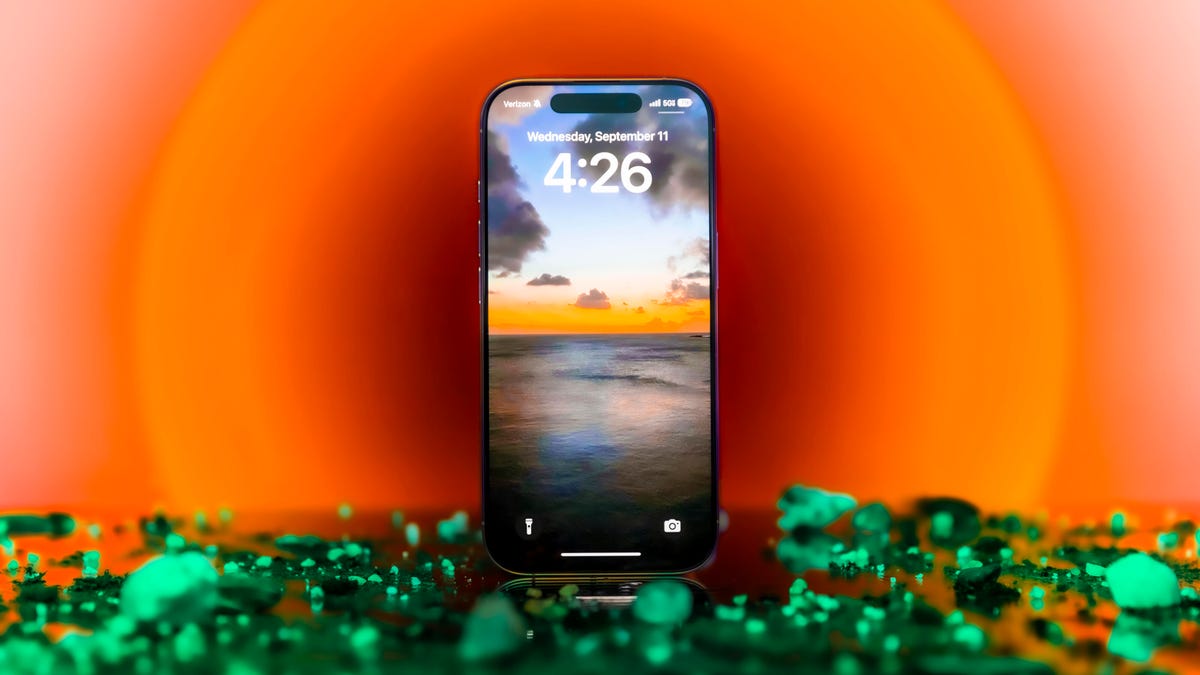
Is your iPhone browser feeling sluggish? If you’ve noticed a decline in speed while browsing with Safari, Chrome, or Firefox, it’s likely time to clear your iPhone browser cache. A surprisingly simple solution, this process can significantly improve your browsing speed, enhance performance, and free up some much-needed storage. Did you know that most people only clear their browser cache every couple of months, even when a simple refresh could make their devices run smoother? Join us as we explore the benefits of clearing your cache and provide step-by-step instructions tailored for your preferred browser.
Understanding the Importance of Clearing Your iPhone’s Browser Cache
Your browser cache acts like a digital mini-fridge, temporarily storing website data to speed up your browsing experience. Whether you’re using Safari, Chrome, or Firefox, this cache accumulates data over time, similar to how leftovers build up in your fridge. However, just like that overstocked fridge, a bloated cache can lead to delays in loading pages and other performance issues.
When you clear your iPhone browser cache, you’re resetting this digital storage and allowing your browser to pull fresh data from websites. This can help eliminate those pesky bugs that cause slow loading times and broken links. It’s a quick and effective fix that often yields an immediate improvement in your browsing experience.
How to Clear Your iPhone Cache in Safari
As the default browser on iPhones, Safari allows you to clear your browser cache easily. If you’re running iOS 11 or later, removing cache from your device will also clear caches on all devices linked to your iCloud account. Follow these simple steps:
- Open the Settings app on your iPhone.
- Select Apps > Safari.
- Scroll to History and Website Data and tap on Clear History and Website Data.
- Confirm by selecting Clear History and Data in the pop-up box.
With these steps completed, you’ve successfully reset your Safari cache and improved the overall performance of your browser.
How to Clear Your iPhone Cache in Chrome
If you prefer Chrome, clearing your cache is equally straightforward. Google streamlines the process to make it user-friendly. Here’s how to do it:
- Open the Chrome app.
- Tap the three dots in the bottom right corner.
- Select Settings from the menu.
- Scroll down and tap Privacy and security.
- Choose Delete browsing data and select the desired time range (from Last 15 minutes to All time).
- Make sure to check Cookies and Site Data, along with Cached Images and Files, then tap on Delete data.
This quick procedure will declutter your Chrome cache, leading to a smoother browsing experience on your iPhone.
How to Clear Your iPhone Cache in Firefox
If Firefox is your browser of choice, clearing the cache is just as simple. Follow these easy instructions:
- Tap the hamburger menu in the bottom right corner.
- Select Settings.
- Choose Data Management under Privacy.
- To clear everything, select Web Site Data and then Clear All Web Site Data. Alternatively, you can individually choose what to clear, such as browsing history, cache, or cookies.
By wiping the cache in Firefox, you can restore some speed and efficiency to your browsing experience.
How Often Should You Clear Your Browser Cache?
Most users find that clearing their cache every month or two keeps their browsers running efficiently. However, if you frequently visit many sites, it might be worth clearing your cache more regularly. The cleanliness of your cache contributes to the overall speed and responsiveness of your browsing experience.
If you’re interested in similar strategies, you might appreciate our recent article on iOS 26 features you didn’t know your iPhone has, which discusses more enhancements that can improve your device’s performance.
Conclusion
In conclusion, clearing your iPhone browser cache is a simple yet effective way to boost your device’s performance and enhance your overall browsing experience. Whether you’re using Safari, Chrome, or Firefox, a quick reset can help resolve sluggishness and improve loading times. For more tech tips, consider our in-depth analysis of iPhone action button tips for pro-level usage.
To deepen this topic, check our detailed analyses on Tech Tips & Tricks section