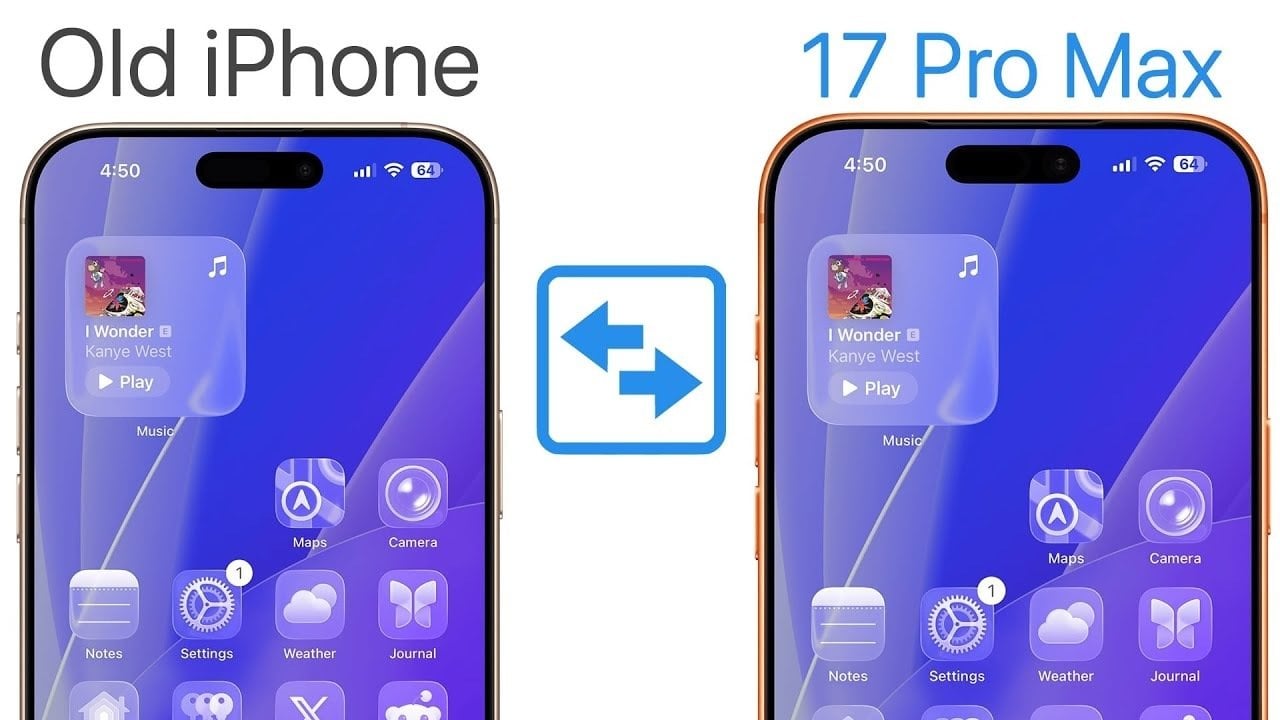
Upgrading to the iPhone 17 or iPhone 17 Pro is more than just a new phone—it’s an opportunity to experience cutting-edge technology, enhanced performance, and innovative features. However, one of the most crucial steps in this transition is learning how to transfer data to iPhone 17 efficiently. Many new users find the process daunting, but a smooth data transfer is essential to avoid disruptions and maximize the benefits of your upgrade. In this guide, we will walk you through the entire process step by step, helping you seamlessly migrate your apps, settings, messages, photos, and more from your old device. Together, let’s ensure your transition to the iPhone 17 is as effortless as possible.
How to Efficiently Transfer Data to iPhone 17
The first stage in successfully transferring your data is preparation. Thoughtful planning will lay the groundwork for a smooth transfer process. Here’s how to get started:
- Update Your Old iPhone: Ensure your previous device is running the latest version of iOS. This step minimizes compatibility issues and reduces potential errors during the transfer.
- Create an iCloud Backup: Backing up your old iPhone is critical. This step acts as a safety net in the unlikely event of a data loss. If iCloud storage is limited, consider upgrading your plan temporarily.
- Charge Both Devices: Before you begin, ensure both your old and new iPhone are fully charged or connected to a power source. This prevents any interruptions during the transfer process.
Initiating the Data Transfer to Your New iPhone
Once your new iPhone 17 is ready, it’s time to begin the transfer process. Apple has streamlined this for efficiency. Here are the steps to follow:
- Choose the “Transfer from iPhone” Option: During the setup of your new iPhone, select this method. It offers a comprehensive and faster transfer than restoring from iCloud.
- Keep Devices Close: Ensure that both iPhones are nearby and connected to a stable Wi-Fi network. Proximity significantly enhances the transfer’s stability.
- Transfer Data Directly: This method ensures all apps, layouts, and settings are transferred directly, minimizing manual configuration on the new device.
Setting Up Your Cellular Service
With the iPhone 17’s support for eSIM technology, transferring your cellular plan is seamless. Regardless of whether you have a physical SIM card or eSIM, follow these steps:
- For Physical SIM Users: Convert your SIM to an eSIM during setup by following the on-screen instructions.
- For Existing eSIM Users: Your eSIM should automatically transfer during setup. If you miss this step, you can activate it later via your iPhone’s cellular settings.
- Contact Your Carrier: If you’re facing activation issues, do not hesitate to reach out to your carrier for assistance.
Configuring Essential Features for Better Experience
After successfully transferring data, it’s time to set up critical features on your new device. This is vital for fully exploring the iPhone 17’s capabilities:
- Enable Face ID: This feature ensures secure authentication. The iPhone 17 boasts enhanced Face ID capabilities including mask support.
- Activate Location Services: Turn on location settings for useful features such as Find My iPhone and location-based reminders.
- Customize Notification Summaries: Effectively manage notifications to minimize distractions.
- Siri Setup: Familiarize yourself with the latest Siri capabilities and personalize its settings to fit your preferences.
- Adjust Camera Features: Explore advanced settings for low-light photography and object recognition.
Final Steps: Confirm and Secure Your Old Device
Once the transfer is complete, it’s crucial to verify that all your data is intact on the new iPhone. Additionally, take measures to secure your old device:
- Check Your Data: Confirm that all files, apps, and settings are successfully transferred. Pay particular attention to crucial applications like email and banking.
- Log In to Key Apps: Ensure access to essential apps remains uninterrupted by verifying login statuses and updating credentials if needed.
- Erase Your Old iPhone: Once satisfied with the data transfer, it’s important to erase all data from your old device to protect your personal information.
Troubleshooting Common Issues
Even with an efficient transfer method, issues may occur. Here are some common challenges and their solutions:
- Slow or Failed Transfers: If the transfer isn’t proceeding as planned, ensure both devices maintain a stable Wi-Fi network. Avoid using the iCloud method unless necessary.
- eSIM Problems: If challenges arise with eSIM activation, access the cellular settings to troubleshoot or contact your carrier for help.
By following these detailed steps and addressing potential challenges, you can ensure a smooth transition to your new iPhone 17 or 17 Pro. With your data successfully transferred and essential features configured, you’re now ready to harness the advanced capabilities of your upgraded device. For further insights, check out our analysis similar to the one discussed in iPhone 17 Pro camera comparison or discover other intriguing topics like the latest leaks about the iPhone Fold.
To deepen this topic, check our detailed analyses on Gadgets & Devices section