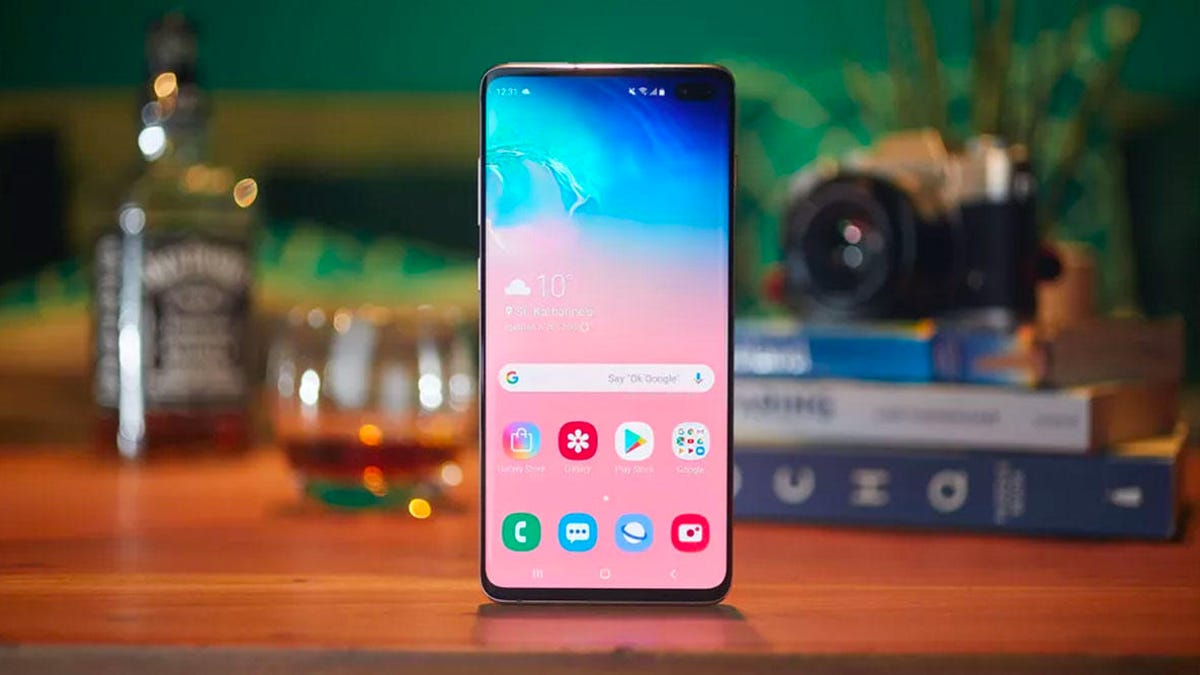
If your Android device has started to feel sluggish, you’re not alone. Many users experience the frustration of a slow Android phone, but before you consider upgrading to a new model, remember that there are effective ways to restore your device’s speed and performance. Surprisingly, your phone isn’t dying; it’s likely just burdened with unnecessary digital clutter. The constant lagging, freezing apps, and slow response times are signals that your phone is struggling under the weight of unused applications and outdated files. Fortunately, making a few adjustments can significantly improve your experience and help your device feel new again.
Identify and Remove Unused Applications
One of the simplest ways to enhance the performance of your slow Android phone is by removing apps you no longer use. Many users accumulate apps over time, which not only takes up valuable storage space but may also run background processes that slow down your device. Take a few minutes to assess your home screen and app drawer:
- Carefully uninstall apps that you haven’t opened in months.
- You can uninstall apps via the app icon or the Google Play Store.
By cleaning out these applications, you free up space and resources that can enhance your phone’s functionality, making it snappier and more responsive.
Clear Out Old Files and Downloads
After decluttering your apps, it’s time to tackle the digital space taken up by old files. Downloaded files can pile up unnoticed, leading to a full storage system. To reclaim space on your slow Android phone:
- Open the Files app (or My Files or File Manager, depending on your phone).
- Navigate to your Downloads folder and delete anything you no longer need.
Using the built-in storage management tools, you can also identify large files and duplicates that may be consuming unnecessary storage. This maintenance task is crucial for a smooth user experience.
Revamp Your Home Screen for a Fresh Look
Another strategy for reviving your slow Android phone is to customize your home screen. Android systems offer extensive personalization features:
- Change your app grid size to maximize screen utilization.
- Adjust the layout and add widgets that enhance usability.
These small changes can create an entirely new look for your device, making it feel like a fresh installation. You can start this process by long-pressing on a blank area of your home screen and exploring the settings available.
Optimize Settings for Enhanced Performance
Now is a perfect opportunity to tweak various settings that may have been overlooked. Optimizing settings not only improves functionality but can also enhance battery life:
- Consider enabling dark mode to reduce battery usage and make your display easier on the eyes.
- Disable automatic app icon additions to keep your home screen organized.
Adjusting these settings helps streamline your interactions with the device, ensuring a smoother experience overall.
Review Privacy Settings for Better Control
Finally, to enhance performance on your slow Android phone, take the time to review and customize your privacy settings. Open the Settings app and navigate to Privacy > Permissions Manager:
- Check which apps have access to your location and personal data.
- Revoke permissions for apps that don’t need them, which can help minimize resource use.
This simple step not only secures your personal information but also ensures that your phone operates more efficiently.
To deepen this topic, check our detailed analyses on Tech Tips & Tricks section