Unlocking the full potential of your Samsung Galaxy smartphone can be a game-changer, especially with the right **One UI tweak**. Did you know that this simple adjustment can significantly enhance your daily productivity? With the ability to assign specific actions to individual fingerprints, you can streamline tasks and personalize your device like never before. Imagine easily accessing your calendar or favorite apps with just a touch of a finger! This article promises to equip you with the knowledge to optimize your smartphone and revolutionize your daily routines.
Enhancing Productivity with One UI Tweak
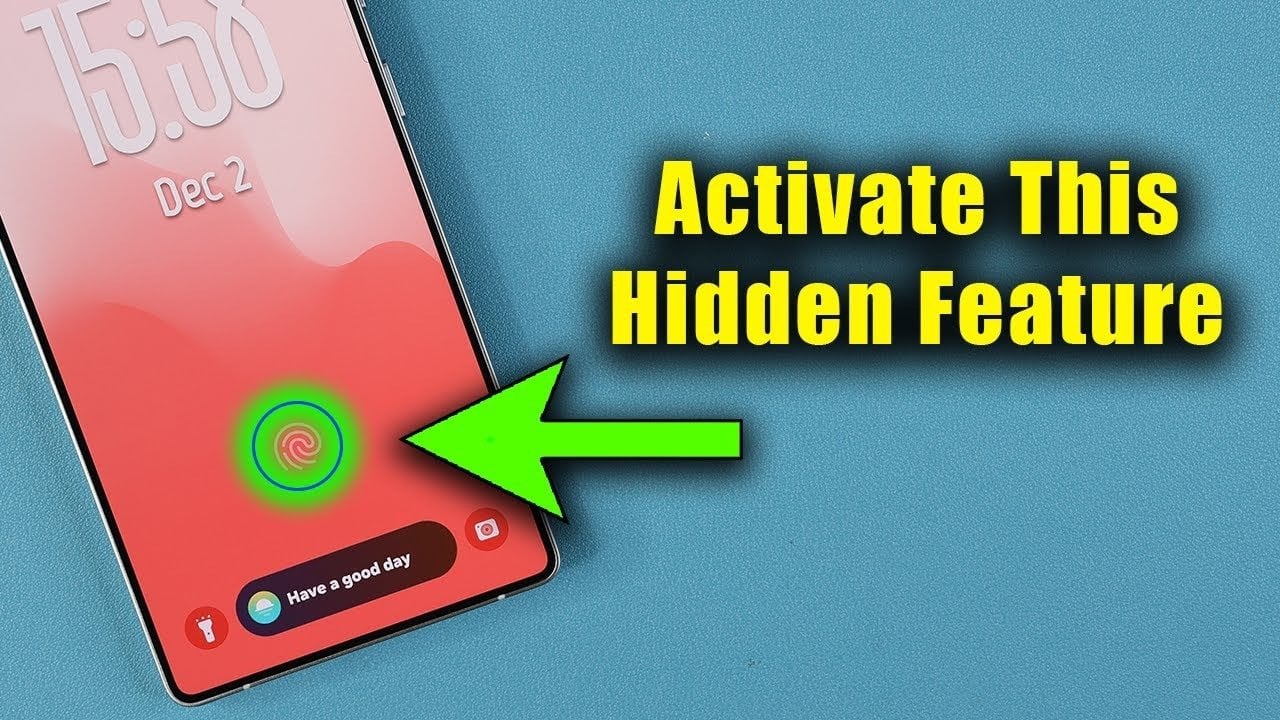
Samsung’s customizable fingerprint recognition feature, part of the latest One UI tweak, is designed to make your life easier. By linking individual fingerprints to specific actions, you can unlock your phone and immediately perform tasks that used to require multiple steps. Consider this:
- Assign your thumb to open your email app quickly.
- Use your index finger to launch your favorite game.
This capability is especially useful for multitaskers who need to navigate their devices efficiently. By incorporating this feature into your daily workflow, you can truly enhance both the functionality and personalization of your smartphone. Take charge of your workflow!
Steps to Set Up Fingerprint-Triggered Routines
Getting started with this remarkable One UI tweak is simple! Here’s a guide to set up your fingerprint-triggered routines:
- Open the “Settings” app on your Samsung Galaxy device.
- Navigate to “Modes and Routines” and select “Add Routine.”
- Define the trigger as a specific fingerprint.
- Choose the desired action, such as launching an app or enabling split-screen multitasking.
- Save the routine and test it by unlocking your phone with the assigned fingerprint.
This straightforward process allows you to unlock the full potential of your device’s fingerprint capabilities. Whether you wish to enhance productivity or add personalization, this feature presents a practical solution.
Combining Security with Personalization
Samsung’s biometric security system uniquely balances protection and customization. In the “Biometrics and Security” settings, you can manage your registered fingerprints effectively. For instance, label one as “Work Finger” and another as “Entertainment Finger” for easy identification. Such organization not only secures your device but also ensures it adapts to your lifestyle. The One UI tweak provides a unique opportunity for users to integrate security with functionality.
Creative Applications for Fingerprint-Triggered Actions
The versatility of fingerprint-triggered routines using the One UI tweak is astounding. Here are some imaginative ways to leverage this feature:
- Launch specific apps such as your messaging, camera, or music player with a single touch.
- Open frequently visited websites directly from your lock screen.
- Enable split-screen multitasking with paired apps for enhanced productivity.
These examples illustrate how you can simplify complex workflows and create a device experience that fits your personal and professional needs. By experimenting with different setups, you can discover innovative ways to optimize your smartphone.
Streamlining Your Workflow with One UI Tweak
Samsung Galaxy smartphones are tailored to empower users through features that enhance productivity and convenience. The ability to assign actions to individual fingerprints through the “Modes and Routines” settings exemplifies this innovation. By integrating fingerprint recognition with personalized routines, you can develop workflows that align seamlessly with your lifestyle.
Whether managing multiple tasks at work or seeking simplicity in your personal life, this feature offers an invaluable solution. Explore the hidden capabilities of your Samsung Galaxy smartphone and transform your interaction with technology:
- For advanced tips, check the hidden features of the Samsung Galaxy A54.
- Discover more about the innovative Samsung Galaxy Z Tri-Fold and its capabilities.
By implementing these features, not only will you save time, but you’ll also enjoy a smartphone experience that feels uniquely crafted for your needs.
To deepen this topic, check our detailed analyses on Gadgets & Devices section