In a world where efficiency is key, the **iPhone Action Button** has emerged as a game-changer for users seeking to maximize their Apple experience. Since its introduction with the iPhone 15 Pro, this innovative feature has revolutionized how we interact with our devices, proving to be more than just a simple mute switch. Researchers have noted that customizable features significantly enhance user satisfaction, presenting a remarkable opportunity to streamline your daily routines. The **iPhone Action Button** offers a unique value proposition: it enables you to tailor your device to meet your specific needs, elevating both accessibility and efficiency. With wealth of options at your fingertips, you can make the most out of this powerful tool.
The Versatile Nature of the iPhone Action Button
The **iPhone Action Button** replaces the traditional mute switch, taking functionality to an entirely new level. While its default purpose is to toggle between silent and ringing modes, the button’s true potential lies in its capacity for customization. By utilizing the Shortcuts app, users can program this button to perform various tasks, turning it into a powerful assistant that simplifies workflows. By adapting the iPhone to your needs, the **iPhone Action Button** becomes an intuitive companion designed to enhance your productivity.
How to Customize the iPhone Action Button
Customizing the **iPhone Action Button** is a straightforward process that aligns it with your specific needs. Here’s how you can easily set it up:
- Step 1: Open the Shortcuts app on your iPhone.
- Step 2: Create a new folder dedicated to Action Button shortcuts, naming it something intuitive, like “Action Button Tasks.”
- Step 3: Add shortcuts to this folder, whether selecting from existing options or crafting new ones suited to your tasks.
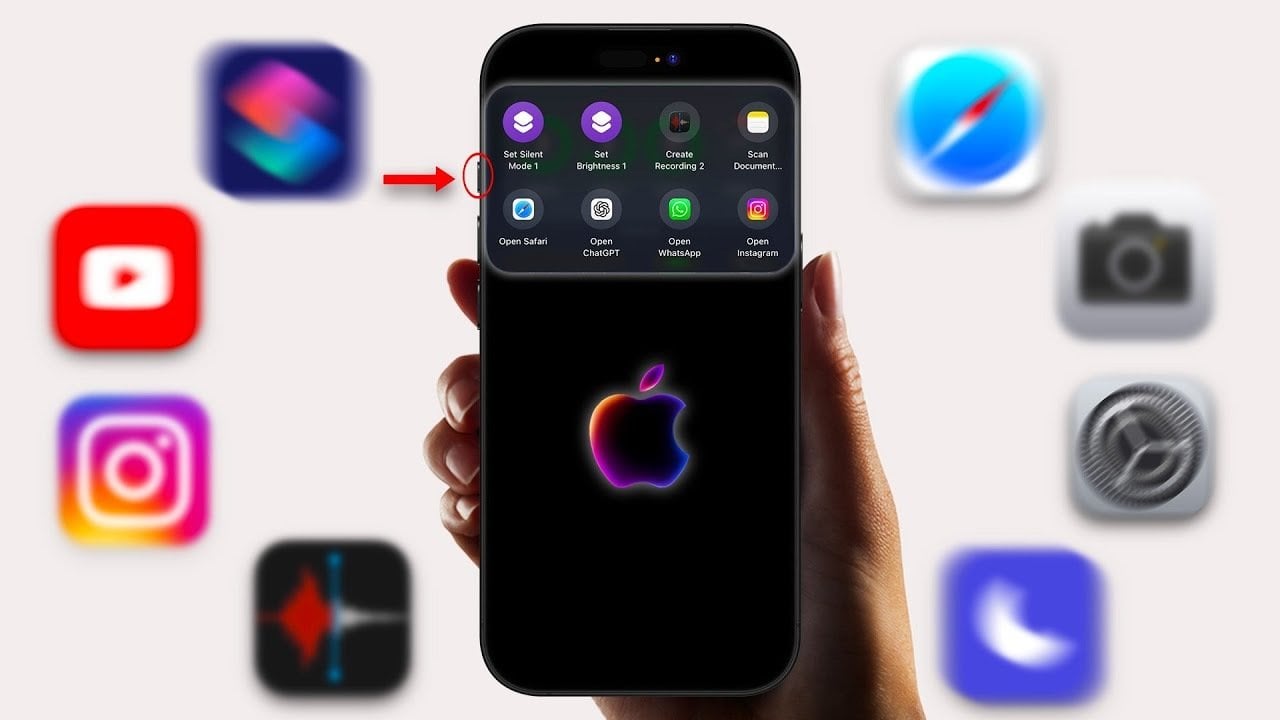
- Step 4: Customize each shortcut with specific actions such as launching applications, adjusting settings, or initiating tasks like voice recording.
These steps ensure that your **iPhone Action Button** is configured to perform the most relevant tasks, ultimately saving you valuable time each day.
Practical Uses for the Action Button
The power of the **iPhone Action Button** is fully realized when you explore its myriad practical uses. Here are several effective examples:
- Toggle Silent Mode: Switch between silent and ringing modes with just one press.
- Adjust Screen Brightness: Set the brightness to a predefined level for various environments, like dimming it for night use.
- Start Voice Recording: Instantly open the Voice Memos app to quickly capture audio notes.
- Document Scanning: Launch the Notes app’s scanner to digitize documents effortlessly.
- Quick App Launch: Access commonly used apps like Safari or Instagram in an instant.
These functionalities exemplify how the **iPhone Action Button** streamlines repetitive tasks, enhances user experience, and minimizes time spent on navigation.
Efficient Organization of Shortcuts
To ensure a fluid experience with your **iPhone Action Button**, it’s imperative to organize your shortcuts for peak usability. Here are tips for maintaining a well-structured setup:
- Prioritize Shortcuts: Arrange shortcuts based on usage frequency, placing the most crucial tasks at the top for quick access.
- Group Logically: Organize shortcuts by category, such as productivity or entertainment, for easier management.
By organizing your shortcuts, you guarantee that the **iPhone Action Button** remains an efficient tool for your daily tasks, enhancing your overall productivity.
Linking Shortcuts to Your iPhone Action Button
After creating and organizing your shortcuts, the next step is linking them to the **iPhone Action Button** via your settings. This process is simple and integrates seamlessly into your workflow:
- Step 1: Open the Settings app on your iPhone.
- Step 2: Navigate to the Action Button option in the settings menu.
- Step 3: Select the folder you created in the Shortcuts app as the Action Button’s primary function.
- Step 4: Test the functionality by pressing the Action Button to confirm it triggers the desired shortcuts.
This setup maximizes the **iPhone Action Button**’s potential, making it an indispensable component of your iPhone experience.
Boosting Productivity with the Action Button
When combined with the Shortcuts app, the **iPhone Action Button** transforms the user experience, drastically changing how you interact with your device. Customizing it to align with your workflow allows for streamlined task management, reducing navigation time, and placing focus on what matters. From toggling silent modes to scanning documents, the Action Button adapts and evolves based on your requirements. This feature condenses multiple actions into a single press, making the iPhone not just a device, but a powerful tool for efficiency.
For more insights on effectively utilizing your **iPhone Action Button**, check out similar strategies discussed in our article about iOS 26 features and tips for enhancing your call quality as explored in this guide.
To deepen this topic, check our detailed analyses on Gadgets & Devices section