Your iPhone is more than just a communication device—it’s a versatile tool designed to help you stay organized, focused, and efficient. With the right strategies in place, you can simplify your daily routine and enhance your productivity. By employing these iPhone productivity tips, you can unlock your device’s full potential, allowing you to manage tasks, reduce distractions, and seamlessly integrate your devices. Discover how to use your iPhone effectively and transform your work and personal life.
Maximize Efficiency with iPhone Productivity Tips
One of the most important aspects of maximizing your iPhone’s effectiveness is to implement efficient browsing techniques. Managing your Safari tabs can save time and reduce digital clutter. For example, if you accidentally close a tab, simply long-press the “+ button in the tab view to reopen it instantly. You can also group your tabs by project or topic using Tab Groups, pin critical tabs, or move them between groups, ensuring a streamlined browsing experience. These tools help keep your focus on what truly matters, enabling smoother workflow.
Enhance Communication Efficiency
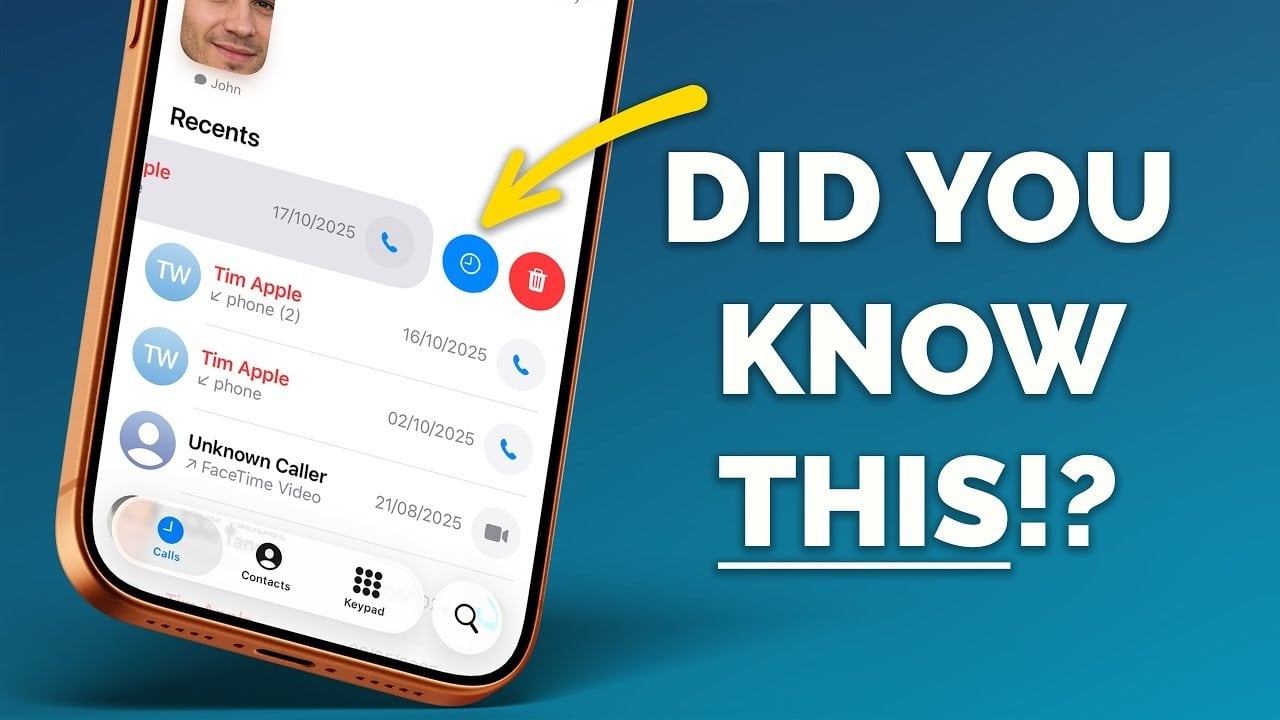
The Phone app offers invaluable tools to speed up communication. For instance, you can set up call-back reminders for missed calls within the app, ensuring you never forget to follow up. Furthermore, adding frequently contacted individuals to your Favorites list allows you to specify how you prefer to contact them—be it through WhatsApp, FaceTime, or a direct call. To go a step further, leverage the Shortcuts app by creating custom home screen buttons that facilitate one-tap calls or messages, effectively saving you time throughout your day.
Stay Focused and Limit Distractions
Distractions can significantly derail your productivity. That’s where Guided Access comes into play. This feature locks your iPhone into a single app, ideal for study sessions, presentations, or when lending your device to others. You can activate it by navigating to Settings > Accessibility > Guided Access and customizing options like time limits or touch restrictions to suit your needs. By eliminating distractions, you can maintain focus and complete your tasks more efficiently.
Master Task Management
The Reminders app is a powerful ally in your quest for productivity. Quickly create reminders through the Control Center or the Action Button for convenience while on the go. To enhance your experience, assign tasks to the Back Tap feature, allowing you to quickly trigger reminders with just a double or triple tap. You can also create templates for recurring tasks or projects, ensuring you don’t have to start from scratch every time. With these features, managing your responsibilities becomes seamless.
Control Notifications for a Smoother Workflow
Incessant notifications can disrupt your workflow. Nevertheless, the Scheduled Summary feature allows you to manage notifications effectively. This tool bundles non-urgent notifications, delivering them at designated times, letting you focus on priorities without interruption. Customize your summary to include updates from apps that don’t demand immediate attention, ensuring you stay informed without compromising productivity.
Seamlessly Integrate Your Devices
If you regularly use both a Mac and an iPhone, integrating these devices can radically enhance your productivity. You can make and receive calls on your Mac using your iPhone’s cellular connection. Ensure your Mac’s audio input and output settings are configured correctly for smooth operation. Moreover, features like Handoff allow you to begin tasks on one device and continue seamlessly on another, creating a workflow that minimizes interruptions.
Create Engaging Tutorials
Creating tutorials is streamlined with your iPhone’s screen recording feature. Document your processes, demonstrations, or troubleshoot guides easily while adding voice narration for clarity. To enable this, access the Control Center, start recording, and turn on the microphone option for voiceover. By combining visuals and audio, you can generate high-quality tutorials directly from your device.
Automate Tasks for Increased Convenience
The Shortcuts app is a robust tool for automating repetitive tasks. Design your custom workflows to perform multiple actions with one tap. For example, create a shortcut to send a pre-written message while adjusting settings or launching various apps simultaneously. By automating mundane tasks, you can save precious time to concentrate on more pertinent activities. Explore the app’s gallery for pre-made shortcuts or create your bespoke processes tailored to your needs.
Leverage Focus Modes to Minimize Distractions
Focus Modes allow you to control your iPhone’s behavior based on your current activity. Whether you’re working, exercising, or unwinding, you can customize notifications, app access, and even your home screen layout to fit your needs. Set up different Focus Modes via Settings > Focus and schedule them to activate automatically, this guarantees that your iPhone adapts to your lifestyle, helping you remain productive without distractions.
Extend Battery Life for Continued Productivity
A drained battery can halt your workflow, but simple adjustments can maximize your iPhone’s battery life. To conserve energy, enable Low Power Mode in Settings > Battery to cut back on background activity. Inspect battery usage statistics to pinpoint apps that over-consume energy, and disable unnecessary features like Background App Refresh or Location Services when not in use. These steps ensure your device remains powered longer, aligning with your productivity needs.
Your iPhone is equipped with a diverse range of features designed to enhance your productivity and simplify your daily tasks. By mastering tools such as Safari tab management, Guided Access, and Focus Modes, you can cultivate an organized and efficient workflow. Whether you are automating tasks with the Shortcuts app or managing notifications effectively, these strategies empower you to maximize your device’s capabilities. Start implementing these iPhone productivity tips today and take control of your productivity to streamline your daily routine.
To deepen this topic, check our detailed analyses on Gadgets & Devices section
For further insights, explore similar strategies discussed in our articles on why you might reconsider upgrading to iOS 16.1, or the best uses for the iPhone action button. Additionally, check out our review on the capabilities of Android 12 for a broader perspective on smartphone productivity. Each of these articles offers valuable insights to enhance your overall tech proficiency.